
Download an AI model and start using Sollestro.
Install Sollestro first. Then download an AI model through Model Packages in the app. The model is the software that examines your clips or photos and helps decide what to use. It runs on your computer, so your creative project data stays there during Local AI work. The one-off licence has no charge for each Local AI job. Model downloads and licence activation need the internet.
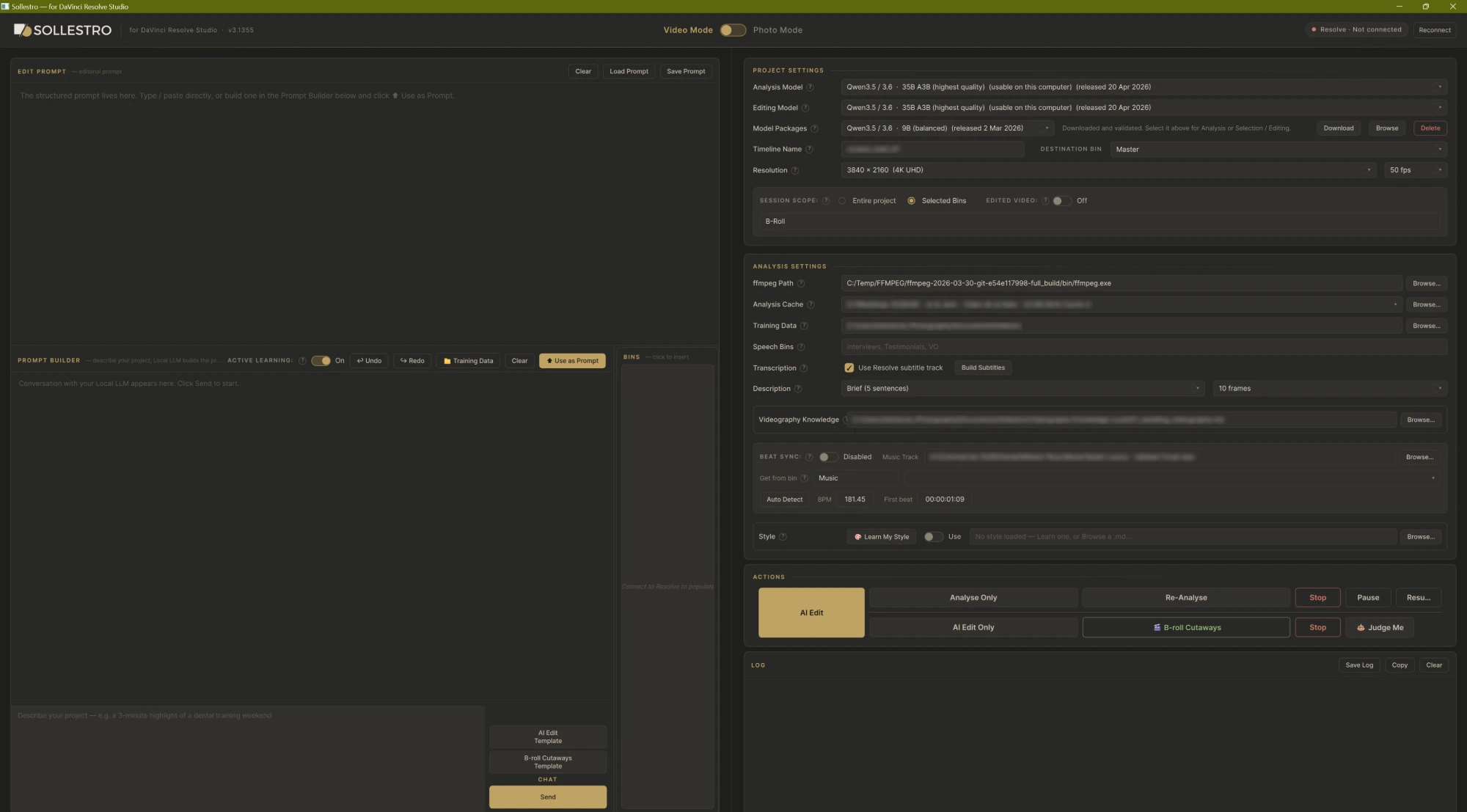
Install Sollestro and download your first AI model
Install Sollestro and activate your licence. Get the Windows or Apple Silicon Mac installer and licence key from your Lemon Squeezy order email. Open the app and enter that key when asked. A free 3.1 Beta key works for 30 days. Sollestro 3.1 Beta installs beside Sollestro 3.0, with its own settings and licence.
Open Model Packages. In Project Settings, open Model Packages and select a package. Sollestro shows its approximate download size and advice based on this computer. A larger model may make better use of the brief but can need more memory, storage and time; there is no one model that is fastest or best for every machine and project.
Choose where to keep the model. Click Download and select a destination with enough free space. Sollestro downloads the approved package files, checks their size and SHA-256 checksum, and only makes a validated package available for selection. Keep that folder in place. If you move it later, use Browse to find it again.
Choose the roles. Analysis Model looks at video frames or photographs, so it must be vision-capable. Editing Model or Selection Model reads the analysis and your brief to make decisions. A suitable combined vision-and-text package can fill both roles; you can also choose different compatible models if your computer has room.
Run a first job. For video, open your project in DaVinci Resolve Studio and connect Sollestro. For photo work, choose the Resolve route or a folder on disk. Load the Videography or Photography Knowledge file closest to the job, because Sollestro needs one before it analyses. Select the clips or images to consider, write the brief and use AI Edit or AI Selection. The app analyses uncached items, then makes the first result. Read the Log and review its output.
Stuck on a step? Ask the Sollestro assistant, the chat button at the bottom right of every page.
No video tutorial yet: ask the assistant to walk you through downloading and choosing a model, step by step.
Which data stays on your computer
The selected Local model processes frames, photo previews, transcript text, descriptions and your brief on the computer running Sollestro. It does not send that material to a cloud AI provider. The model download comes from its publisher-hosted files, and Lemon Squeezy is contacted for licence activation and later checks. The website support chat is separate and uses a cloud service; do not put private client material into it.
Questions about privacy or what needs the internet? Ask the Sollestro assistant.
How to choose a model for your computer
Start with a package that the app says fits your computer. Check its download size and the free space on your drive. If it does not load or makes your computer unstable, use a smaller supported package. Large jobs may take time; the model, computer memory and media all affect this. Read the Log for errors on a particular run.
Sollestro 3.1 Beta offers one model family, Qwen3.5 / 3.6, in three sizes. Each size reads pictures and writes text, so one download can do both jobs. The figures below are the ones the app checks against your computer before it suggests a size.
| Model package | Download | System memory | Graphics memory preferred | Disk space |
|---|---|---|---|---|
| 35B A3B (highest quality) | About 17.4 GB | 32 GB | 25 GB | 19 GB |
| 9B (balanced) | About 6.1 GB | 16 GB | 10 GB | 7 GB |
| 4B (lighter) | About 3.2 GB | 12 GB | 6 GB | 4 GB |
With less graphics memory than preferred, a package can still be usable, but long requests run more slowly; Sollestro says "usable on this computer" in that case. Too little system memory or disk space and it says the package may be too large. On an Apple Silicon Mac, the Mac's memory serves both roles.
You can start with one supported model that handles both images and text, if it fits your computer. Select it in both the Analysis and Editing or Selection menus. You do not need to download several models to begin.
Not sure which size fits your computer? Ask the Sollestro assistant. Tell it your computer's memory and graphics card.
Before a long run
Keep Resolve running if your job needs it, but open an empty timeline: a loaded 4K timeline holds graphics memory the model could use. Close other graphics-heavy apps before you start. Sollestro sizes each job to the graphics memory that is free when the job begins, so memory freed halfway through does not speed that job up.
Is a job running slowly? Ask the Sollestro assistant.
Questions
Is the model included in the installer?
No. Install the app, then use Model Packages to download a compatible model separately. This keeps the choice with you and lets Sollestro show advice for your computer.
Why are there two model selectors?
Analysis looks at images and needs a vision-capable model. Editing or Selection works from the saved descriptions and your brief. A compatible combined package can be selected for both.
Can I store a downloaded model on another drive?
Yes. Choose the destination during Download. Keep the folder available to Sollestro; if it moves, use Browse to locate it again.
Does Local mode work without any internet connection?
After a model is installed, its AI processing is Local. Downloads and initial licence activation need internet, and periodic licence checks use Lemon Squeezy, with up to 14 days offline since the last successful check.
Do I have to buy AI credits?
No separate AI credits are charged by Sollestro for Local analysis, editing or selection. You still need a Sollestro licence and a computer that can run your chosen model.
What if a download or first run fails?
Read the exact message in the Log. Note the app version, selected model and free storage. Use Save Log and email [email protected] with your computer details and what you tried. Keep your existing analysis and model files until the cause is known.
Another question about models or setup? Ask the Sollestro assistant.