
Describe the video you want. Sollestro builds a draft edit.
Tell Sollestro what the video should say, who it should show and what to leave out. It examines the clips you select and builds an editable draft in DaVinci Resolve Studio. You can read and change the written instructions before it starts.
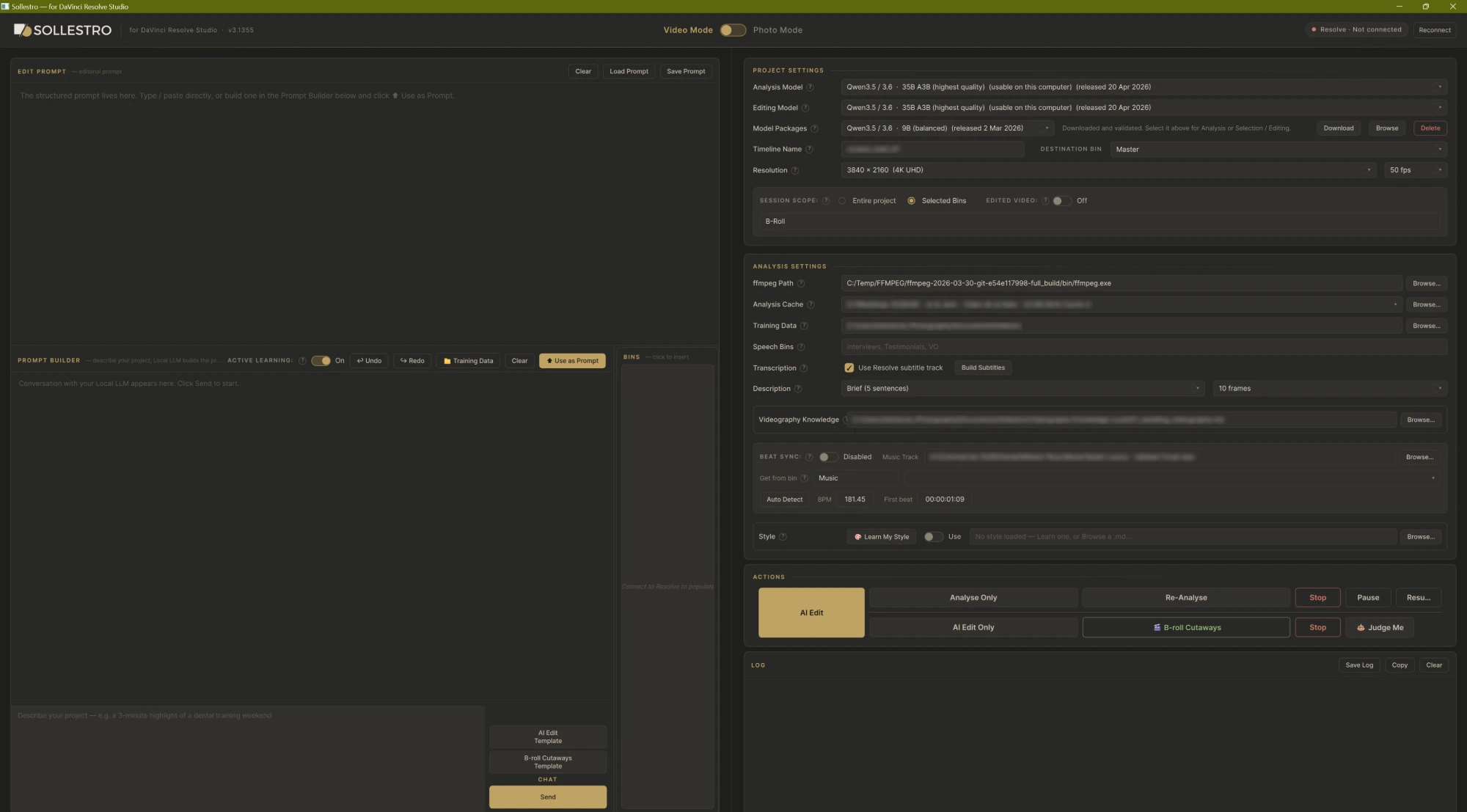
Example instructions for a video
Make a 90-second film for a recruitment page. Open with the strongest line about the team, show the workshop and the people doing the work, then end on the invitation to apply. Keep the tone direct, not corporate. Avoid the test takes in the Interviews bin.
You can ask for a length, a sequence of ideas, particular people or moments, source bins, exclusions and the way interviews and music should be treated. Sollestro should be able to use the information actually present in the analysed project; check its proposed prompt for assumptions before you run it.
For B-roll Cutaways over an existing timeline, the brief can name the moments to keep on camera, for example "keep the vows and the first kiss on camera", list exact subtitle lines to keep, or ask for no gaps.
Want help turning your notes into a brief like this? Ask the Sollestro assistant, the chat button at the bottom right of every page.
What you write and what you get
Brief: What you want to communicate and what the deliverable needs to do.
Template: In the Prompt Builder, AI Edit Template, or B-roll Cutaways Template for B-roll over an existing timeline, puts a fill-in brief in the message box. Replace each hint in brackets with your own words and press Send. A hint you leave untouched is removed.
Prompt: The detailed instruction Sollestro builds in Edit Prompt, using your brief, the Shoot Summary and your Videography Knowledge file. Click Use as Prompt to move it there, then revise it before using AI Edit. The gold AI Edit button can also build it for you after analysis.
Timeline: An editable first cut in Resolve. Review it against the brief and change the edit as needed.
Questions about the Prompt Builder or the templates? Ask the Sollestro assistant.
No video tutorial yet: ask the assistant to walk you through the Prompt Builder and the templates, step by step.
Make another draft from the same clips
Your analysed clips are saved in the Analysis Cache. Revise the prompt and use AI Edit Only to build another edit from that analysis. Use Re-Analyse when the source descriptions themselves need updating.
Run the same job again within a day and Sollestro reads your latest prompt and may loosen a few of its own working rules for that run, such as the shortest time on camera, naming each one in the Log. Standing preferences you state, such as "never use drone shots over interviews", are remembered by Active Learning, announced in the Log and can be undone.
Wondering why a second run came out differently? Ask the Sollestro assistant.
Questions
Do I need to write a technical prompt?
No. Write the job in ordinary language and use Prompt Builder if you want help structuring it. The prompt remains visible and editable.
Can I ask for a specific subject or moment?
Yes. State it in the brief. Sollestro can only work with material it finds in the selected scope, so check the result and the Log if something important is missing.
Is the result ready to publish?
Treat it as a first cut. Review the whole timeline and finish the creative, technical and client-facing details in Resolve.
Not sure how to word your brief? Ask the Sollestro assistant. It can help you shape a brief and explain every setting in Sollestro 3.1 Beta.